tinyCam Monitor PRO for IP Cam
- 3.9
- Rating
- 500.00K
- Installs
- $3.99
- Price
 Analysis by App-foxy
When I look for an IP camera viewer, I am not only asking whether the picture appears on my phone. I want to know how many camera brands I can bring together, how much control I get after the initial setup, and whether the app remains useful when I am checking a home, a small office, or a workshop from an ordinary day-to-day device. That is the lens through which I approached tinyCam Monitor PRO, an Android app from Tiny Solutions LLC in the video players and editors category.
My overall impression is that this is aimed at people who have moved beyond a single-camera experience. It is designed for mixed IP camera environments, including Wyze, Yi, Eufy, Arlo, ONVIF, RTSP, and P2P cameras, while also offering more advanced viewing tools and a DIY DVR approach. That combination makes it more interesting than a basic manufacturer app, but it also means the experience depends heavily on the cameras, protocols, and network setup you already use.
The app costs $3.99 and is rated for Everyone, so the purchase is relatively easy to understand: you are paying for a more capable monitoring workspace rather than joining a subscription-heavy security service. It has been available since December 9, 2010, and its long presence is reflected in a community of over 500 thousand installs, with an average rating of 3.9 from around 37 thousand ratings. Those figures suggest a well-established tool with a mixed but substantial user base, not a brand-new experiment.
You May Also Like

 Blood Strike: 2.5 Anniversary
Blood Strike’s Loadouts Turn Every Drop Into a Tactical Gamble
A close look at Blood Strike’s custom loadouts: how fast access to signature weapons reshapes its battle royale rhythm, rewards preparation, and narrows the gap between fights.

 Pandora - Music & Podcasts
Pandora’s Music Is Easy to Start, but Harder to Recover
Pandora’s strength is its low-effort path from a seed to a station. Its weak spot is how much confidence it asks you to place in connection, setup, and quiet recovery.

 8 Ball Pool
 Is Built on Rivalries, Rematches, and Routine
A close look at the rivalries, rematches, shared routines, and unanswered safety questions that turn a quick pool match into a persistent mobile community.

 Samsung Music
’s Quiet Strength Is Playing What You Already Own
Its reach comes less from spectacle than from dependable access to a personal library. That simplicity is both the app’s strongest retention engine and its ceiling.

 AccuWeather: Weather Radar
AccuWeather Review: A Quick, Clear Forecast for Everyday Decisions
For everyday plans, the best forecast is the one you can understand quickly. AccuWeather makes rain timing, radar, and local conditions easy to act on, with a few trade-offs.

 Hill Climb Racing
Why Hill Climb Racing Still Turns Crashes Into One More Run
A tiny car, a bumpy hill and one more upgrade: Hill Climb Racing keeps resurfacing because its simple chaos makes every near-miss feel personal.
More From Our News Desk
View All News


What I would check before choosing a camera viewer
The first decision is compatibility. A camera may work perfectly in its own app yet behave differently when accessed through a third-party viewer. Before buying, I would identify whether each camera exposes ONVIF, RTSP, P2P access, or a supported brand-specific connection method. The important point is not simply seeing a brand name in a description; it is knowing which connection route your particular model uses.
This matters especially in a mixed setup. If one camera is from Wyze, another from Eufy, and an older unit uses ONVIF, the manufacturer apps create separate islands. A unified viewer can be much more convenient, but only if those cameras can actually provide a usable stream to it. I would therefore test the least cooperative camera first, rather than assuming that the newest or most popular device determines the whole experience.
The second decision is how much control I really need. Someone who checks a single door camera twice a day may be happier with the official app, where setup is usually guided around one ecosystem. Someone who wants a tiled view, a broader collection of feeds, or a home-built recording workflow has a different problem. For that person, the value of tinyCam Monitor PRO comes from consolidating cameras and reducing app switching.
The third decision is tolerance for technical setup. This is not the kind of purchase I would recommend blindly to a person who dislikes network settings, camera credentials, or troubleshooting. The advanced options are useful precisely because they expose more of the underlying camera system. That flexibility can solve problems, but it can also make the first evening less effortless than installing an official camera app.
I would also consider where the phone or tablet will live. A mobile viewer is convenient for checking feeds while moving around the house, but a permanently mounted tablet, an older spare phone, or a small monitoring station places different demands on the app. A DIY DVR workflow can be appealing in those situations, yet any recording plan should be tested for storage use, device heat, network reliability, and whether the chosen camera stream stays available when the screen is not being actively used.
Why a unified view is more useful than it sounds
The clearest strength is the ability to approach several camera types from one interface. I find this more valuable than it first appears because camera ownership tends to become fragmented over time. A person may start with one indoor camera, later add a door view, then reuse an older network camera in a garage. The official apps may each be fine individually, but checking them one after another is slow and makes it harder to form a quick picture of what is happening.
A combined viewer is particularly helpful during a realistic evening routine. Imagine hearing movement outside while preparing dinner. Instead of opening one app for the entrance, another for the driveway, and a third for the back room, I would rather open one monitoring screen and scan the relevant feeds. That does not replace a proper alarm system, but it reduces friction at the moment when speed and context matter.
The same advantage applies to a small business or workshop. A person may want to glance at a front entrance, a workbench, and a storage area without dedicating a separate device to every camera brand. The app’s appeal is not that it magically improves every camera; it is that it can turn a collection of unrelated streams into one practical viewing habit.
There is also a useful distinction between live viewing and a recording workflow. Many official camera apps are built around cloud services, account features, or a particular brand’s hardware. A DIY DVR direction is more attractive to someone who wants to experiment with local control or use existing equipment in a personal monitoring setup. I would treat that as a project to configure carefully, not as a promise that every camera becomes a complete security recorder immediately.
Advanced connections reward careful testing
The support for ONVIF and RTSP is important for users with more traditional network cameras. These protocols can make a camera less dependent on its original app, but they also require the user to know what the camera exposes and how it is protected. I would keep a written note of each camera’s address, account, stream type, and intended location before adding anything. That simple preparation makes later troubleshooting far easier.
P2P support can be useful when a camera is designed around remote access rather than a straightforward local stream. However, I would not assume that every connection method behaves identically. A feed that works locally may need different handling when viewed away from home, and a camera’s own limitations can remain visible inside a third-party viewer. In practice, the best workflow is to test both local viewing and remote viewing before relying on the app while traveling.
One non-obvious advantage of a multi-protocol viewer is that it can help reveal where a problem actually lives. If one feed fails while the others remain stable, the issue may be the camera, its credentials, its network path, or its particular protocol rather than the whole app. That makes a structured test useful: add one camera, confirm the live image, close and reopen the viewer, then add the next. Adding everything at once makes it much harder to identify the source of a failure.
Another practical tip is to avoid judging the app from a single crowded layout. A wall of small feeds looks impressive but is not always useful. I prefer arranging the most important views where they can be recognized quickly, then using individual camera views when I need detail. The app’s strength is access to multiple feeds; the user still has to design a layout that matches the way they actually monitor a place.
Where the official alternatives can be better
I would not replace a manufacturer’s app automatically. Official apps are often the better choice for owners who want guided onboarding, brand-specific notifications, account management, firmware tools, or features tied closely to one camera family. If all of your cameras come from one manufacturer and you are satisfied with its interface, adding another viewer may create more configuration work without solving a real problem.
The same applies to people who only need occasional access to one camera. A unified multi-camera workspace is unnecessary if your routine is simply opening a doorbell feed when someone rings. In that case, the official app may feel more direct, and its instructions are likely to be written specifically for that hardware.
Cloud-centered security services may also suit users who want a polished, managed package rather than a DIY arrangement. I would choose that route when dependable vendor support, integrated alerts, and a simple account-based experience matter more than mixing older cameras or controlling the viewing environment. The trade-off is less flexibility, but simplicity can be the more sensible choice for a household that does not want to maintain its own camera workflow.
There is a third alternative: a desktop-oriented surveillance system. For a larger installation with dedicated storage, many cameras, and a permanent control screen, desktop software may offer a better long-term workspace. tinyCam Monitor PRO makes more sense when mobile access and flexible camera compatibility are central. It can be part of a small DIY setup, but I would not confuse a phone or tablet viewer with a full commercial video management system.
The friction of switching from separate camera apps
The cost of switching is not only the purchase price. It is the time spent collecting connection details, learning which protocol each camera supports, and deciding which feeds deserve a place in the main view. If your current system already works, that effort needs to produce a clear benefit. I would start with the camera I check most often and one camera from a different brand. If the combined workflow saves time, expanding the setup makes sense.
I would also keep the official apps installed during the transition. They remain useful for camera-specific maintenance and provide a fallback when a stream behaves unexpectedly in the third-party viewer. Removing them too early can turn a small configuration problem into a larger one, especially if you need to confirm whether the camera itself is online.
Security habits matter during this process. Use camera accounts rather than casually sharing credentials, avoid exposing a camera directly to the public internet unless you understand the consequences, and test remote access from a trusted connection. A viewer can organize access, but it cannot make an insecure camera configuration safe by itself. This is one area where convenience should never outrank basic network hygiene.
For recording, I would begin with a short trial instead of leaving a device running continuously from the first day. Check whether the saved footage is easy to locate, whether the storage location suits you, and whether the device remains responsive during the workflow. A DIY DVR is valuable only when the recordings can be found and used later. A complicated archive that nobody checks is not much of a security improvement.
Who will get the most from it
I see the strongest fit among technically comfortable users who own cameras from different ecosystems, want one place to view them, or are interested in building a modest monitoring setup from existing hardware. It is also a sensible option for someone who wants to experiment with ONVIF, RTSP, or P2P cameras without committing immediately to one vendor’s complete product line.
It can be useful for a family member who has inherited several cameras and wants a simpler daily routine, provided someone is willing to handle the initial setup. The app’s value grows when the alternative is repeatedly switching between unrelated interfaces. A single screen can make a collection of cameras feel more manageable.
I would recommend skipping it if you want a completely guided experience, dislike troubleshooting, or only use one camera with no plans to expand. I would also look elsewhere if your priority is a full professional surveillance platform with dedicated storage, advanced administration, and a permanent control-room workflow. The app’s flexibility is its selling point, but flexibility always asks the user to make more decisions.
My recommendation after weighing the trade-offs
tinyCam Monitor PRO is a practical choice for the right kind of camera owner: someone who values compatibility and consolidation more than a perfectly guided, brand-specific experience. Tiny Solutions LLC has built an app around the messy reality of mixed IP cameras, and that is where it earns attention. The support for Wyze, Yi, Eufy, Arlo, ONVIF, RTSP, and P2P gives it a broader purpose than a single-brand viewer.
At $3.99, I consider it a reasonable purchase for a user who already knows why a unified viewer or DIY DVR workflow would help. I would not buy it merely because it sounds more advanced than an official app. I would first list the cameras, identify their connection methods, and decide whether I truly need one monitoring workspace. That small amount of planning determines whether the app feels empowering or unnecessarily technical.
The 3.9 average from around 37 thousand ratings feels consistent with a tool that can be very capable while still depending on hardware and network conditions outside its control. My recommendation is therefore clear but conditional: choose it when you have multiple compatible cameras, want flexible viewing, and are prepared to spend time configuring the system. Stay with an official app when simplicity and brand-specific features matter more. For a DIY-minded Android user, though, this is a strong way to turn scattered camera feeds into one usable monitoring routine.
FAQs for tinyCam Monitor PRO for IP Cam
01What is tinyCam Monitor PRO for IP Cam used for?
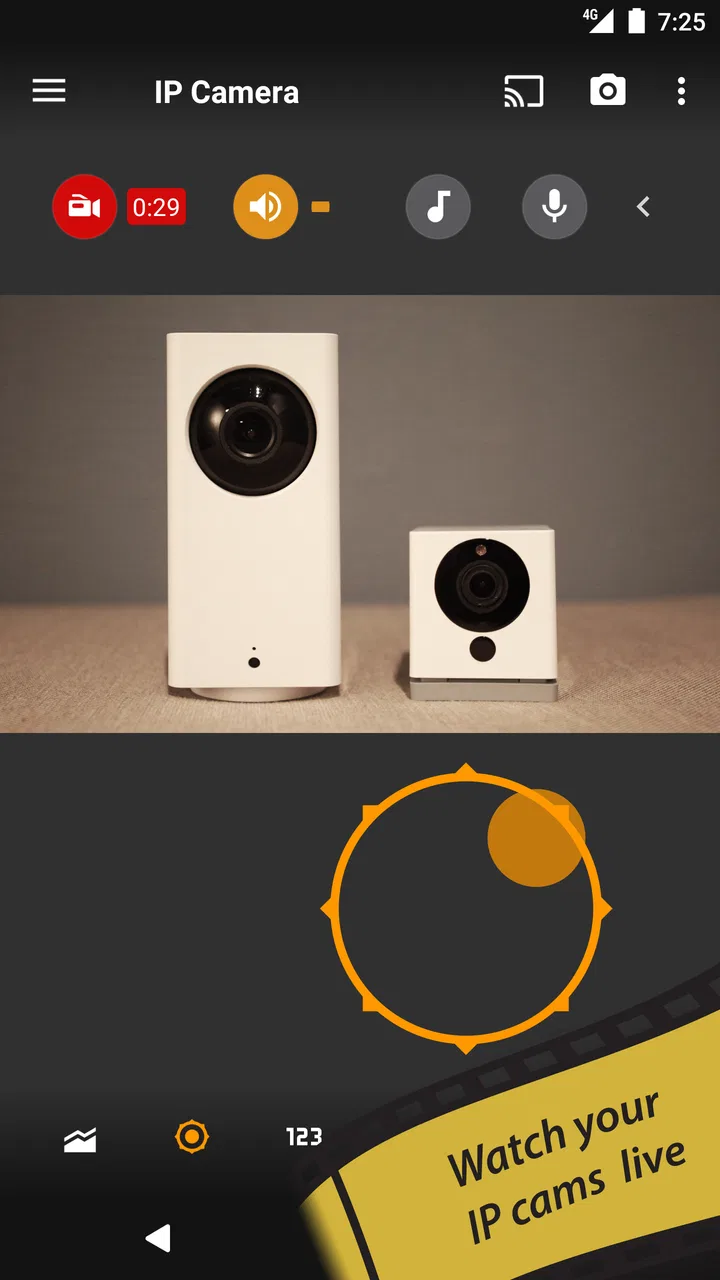
tinyCam Monitor PRO is an Android surveillance and camera-viewing application that lets you monitor IP cameras, webcams, DVRs, and some network video sources from one place. After adding compatible cameras, you can view live feeds, switch between cameras, use layouts, and access features such as motion detection, recording, audio, and remote monitoring, depending on your camera model and network setup.
02Which cameras and devices are compatible with tinyCam Monitor PRO?
The app supports many network cameras and video devices, but compatibility depends on the camera brand, protocol, and available stream format. Common options may include ONVIF, RTSP, MJPEG, and selected manufacturer-specific connections. Before downloading, check whether your camera provides a supported stream and whether its login credentials, port settings, and firmware allow third-party applications to connect.
03Does tinyCam Monitor PRO work outside my home network?
Yes, tinyCam Monitor PRO can be used for remote viewing, but the exact setup depends on your camera and network. Some users connect through a manufacturer cloud service, while others configure port forwarding, VPN access, or a secure remote connection. You may need to adjust router settings and use a public address or dynamic DNS, so remote access is not always automatic.
04Can tinyCam Monitor PRO record video and send motion alerts?
The application includes surveillance features such as video recording, snapshots, motion detection, and notifications, although the available options can vary according to the camera source and Android device. Continuous recording may consume considerable storage and battery power. Motion alerts also require suitable camera streams, correct sensitivity settings, notification permissions, and a reliable network connection.
05Is tinyCam Monitor PRO safe to use, and what should I know about privacy?
The app can be useful for private camera monitoring, but security largely depends on how your cameras and network are configured. Use strong, unique passwords, update camera firmware, avoid exposing unnecessary ports, and prefer encrypted or VPN-based remote access when possible. Because the app handles live video and credentials, review permissions and avoid installing it from unofficial download sources.
Pros
- Supports many IP camera brands and common streaming protocols.
- Offers background monitoring with motion and sound detection alerts.
- Can record locally or to cloud services for later playback.
- Includes two-way audio on compatible cameras.
- Provides widgets and quick access for convenient home monitoring.
Cons
- Some advanced features require cameras with compatible hardware support.
- Initial camera setup can be technical for less experienced users.
- Continuous recording may quickly consume storage and battery.
- Remote viewing depends heavily on network quality and router settings.
- The interface can feel dated compared with newer security camera apps.

tinyCam Monitor PRO for IP Cam
Gallery